

An office can look ready long before its IT is ready. The desks are assembled, monitors are unpacked, and the network cabinet is locked. But when employees arrive, can they sign in, connect to essential applications, join meetings, and get help if something fails?
Use this checklist to confirm that a new office is ready for work. It covers the network, devices, access, meeting rooms and support, with a named owner and evidence for each check. It is designed for MSPs and systems integrators coordinating an opening with remote and on-site teams.
10-point opening-day IT checklist
Use this checklist with your MSP, integrator and site team. Record the status for each item as Ready, Ready with an approved exception, or Blocked. For exceptions, capture the owner, next action and due date.
Scope · Project lead · Confirm opening date, critical workspaces, site access and decision-makers. Record the approved scope and contacts.
Inventory · Deployment lead · Match received devices and accessories to the approved list. Record shortages and asset IDs.
Connectivity · Network owner · Verify internet access, wired ports, Wi-Fi coverage and application reachability. Save test results by area.
Devices and access · Endpoint and identity owners · Verify enrollment and sign-in with a representative approved account. Record the device and result.
Workstations · On-site lead · Pilot a complete desk kit. Record the desk ID, tested peripherals and any incompatibilities.
Meeting rooms · AV or platform owner · Run a test call with audio, video and screen sharing. Record the room ID and result.
Security · Customer security owner · Verify agreed protections and access controls. Record approved exceptions.
Employee workflow · MSP or customer IT · Test sign-in through to essential apps, a meeting and a support request. Record pass or fail by workflow.
Day-one support · Service desk lead · Verify the support channel and escalation route. Share the contact and coverage plan.
Handover · Project lead · Reconcile assets, tests and open issues. Record acceptance and the owner of every unresolved item.
Plan the work in four stages
Before ordering, confirm circuit and cabling dependencies, desk counts, equipment standards and room requirements. Before dispatch, check deliveries, access, power, network readiness and escalation contacts. During the pilot, test representative desks and one complete meeting workflow. Before opening, review blockers with the project lead and agree which workspaces can be accepted.
Why office IT readiness needs its own plan
A workplace opening brings together several moving parts: deliveries, building access, cabling, connectivity, device deployment, identity management, meeting-room technology, security, and end-user support. Each may be owned by a different provider or team. If responsibilities are unclear, a small unresolved dependency can delay an entire area of the office.
The answer is not a larger spreadsheet alone. It is an agreed sequence of work, a named owner for each dependency, and clear acceptance criteria. A workstation should not be called ready simply because the monitor lights up; a meeting room is not complete merely because the camera is connected. The experience needs to be tested from the user's perspective.
1. Agree on the scope, opening date and decision-makers
Start by defining what must be operational on day one. Confirm the number of employees, work areas, shared spaces, devices, and any specialist requirements. Identify the services that are in scope and, just as importantly, the tasks that are not. This prevents an on-site engineer from being asked to perform an unapproved activity during the final hours of deployment.
Name a customer decision-maker, the remote technical lead, the local site contact, and the person who can approve changes. Building access, delivery windows, security procedures, and escalation contacts should be established before engineers travel to site. A clear handover between these roles can prevent avoidable delays.
2. Reconcile equipment before arranging desks
The first physical check should compare the approved inventory with what has actually arrived. Laptops and displays are obvious, but a rollout can stall over missing docks, power adapters, mounting hardware, compatible cables, or peripheral equipment. Record damaged or missing items early, and avoid substituting parts without the customer's approval.
Where asset tracking is required, capture the agreed identifiers and confirm who will update the inventory system. An accurate equipment record makes troubleshooting, support handovers, and later moves or replacements much easier.
3. Confirm the network is genuinely ready
A new office needs more than connected cables. The network team should confirm that the required circuits, switches, ports, wireless access points, and approved connectivity settings are ready for service. At the site, physical checks may include patching, labeling, equipment placement, and identifying damaged or disconnected components.
Keep the division of work explicit. The remote network owner should define configuration and validation requirements, while an authorized on-site team can perform physical tasks and supply evidence. An installed access point or a blinking switch port does not by itself prove that staff will be able to connect securely and work reliably.
Record circuit activation, representative wired and Wi-Fi tests, port-to-desk mapping and approved guest access. Where the project requires resilience, ask the network and facilities owners to verify backup connectivity, recovery arrangements and power protection. Confirm who owns any unresolved issue before sign-off. See onsite network support for physical installation and troubleshooting scope.

4. Prepare user devices and access together
Device setup and user access are closely linked. Before desks are signed off, confirm how laptops and desktops will be enrolled, which business applications they require, and how users will authenticate. Any endpoint management or security baseline should follow the customer's established IT policies.
Use an authorized test process to confirm that a representative employee can sign in and access essential tools. Never bypass access controls or share credentials simply to accelerate the opening. If an account or device is not ready, log the issue and assign it to the appropriate owner.
5. Test monitors, docks and everyday peripherals
One incompatible cable can turn a perfectly prepared workstation into a support ticket. Check display connections, docks, power supplies, keyboards, pointing devices, and headsets against the approved setup. If printers or scanners are part of the deployment, confirm both the physical installation and the agreed user workflow.
A practical approach is to complete one representative desk from end to end before repeating the setup across the office. That first test can reveal compatibility problems early, when fixing them is still manageable.
If you need local help with workstation installation, see DacoreIT’s office IT installation and IMAC services.
6. Make meeting rooms usable, not just installed
Meeting-room technology often combines components from different vendors. Displays, cameras, microphones, speakers, controllers, network connections, and collaboration software all need to work together. A room that appears finished may still have poor audio, the wrong display input, or a meeting account that has not been provisioned.
Test at least one real meeting workflow using the approved platform. Check what participants can see and hear, whether content sharing works, and who will support the room after the opening. Ownership is particularly important when installation and account configuration belong to different teams.
For Teams Rooms, check the room account, booking and calendar join, then test audio, camera and screen sharing with a participant outside the room. Use Microsoft’s Teams Rooms deployment guidance for platform-specific dependencies.

7. Review security before handover
The customer's security requirements should be treated as part of readiness, not an afterthought. Depending on the environment, these may cover device encryption, endpoint protection, multifactor authentication, secure wireless access, guest connectivity, physical equipment access, and permissions for shared resources.
The customer IT or security owner should approve the baseline and any exceptions. On-site support teams can help perform defined checks, but they should not make unapproved changes to security policy. Issues that remain open must be documented rather than hidden behind a general 'completed' status.
If multifactor authentication is in scope, ask the identity owner to verify that a test user can complete the approved sign-in flow and knows how to get help. See CISA’s multifactor authentication guidance.
8. Test the complete employee experience
Individual components may pass inspection while the overall workflow still fails. Before opening day, test a representative path: an authorized user signs in, connects to the network, opens essential applications, joins a call, uses the required peripherals, and knows how to request support.
Capture the outcome against agreed acceptance criteria. If a test fails, record the symptom, location, responsible team, and next action. Evidence such as configuration notes or photographs can help remote engineers resolve issues, provided it is collected and shared according to the customer's information-handling rules.
9. Prepare support for the first working day
Even a well-tested deployment can reveal unexpected problems when the office fills with people. Plan how staff will report issues, who receives the first request, when a remote specialist is involved, and how an on-site visit will be arranged if required. Business-critical problems should have a defined escalation route.
For MSPs overseeing multiple locations, a shared incident log and clear communication channel reduce the need for repeated explanations. Avoid promising response times that have not been agreed commercially; instead, make the support ownership and escalation process visible to the customer.
10. Finish with a handover someone can use
A rollout is not complete when engineers leave the building. The receiving team needs a concise record of what was installed, what was tested, which items remain unresolved, and who owns the next action. Where applicable, this includes inventory updates, site notes, test evidence, and customer acceptance.
The strongest handovers distinguish physical completion from technical validation. For example, 'equipment installed and labeled' is a different statement from 'service tested and accepted by the network owner.' That distinction helps the next support team understand exactly what is ready.
Example handover entry (hypothetical): Desk B-12 | Laptop LT-042 | Dock incompatible | Blocked | Owner: procurement lead | Next action: supply the approved dock before final sign-off. Keep the desk blocked until the replacement passes the user test or the project lead accepts a documented workaround. Use the illustrative new-office workstation rollout to see how pilot findings can inform the main deployment.
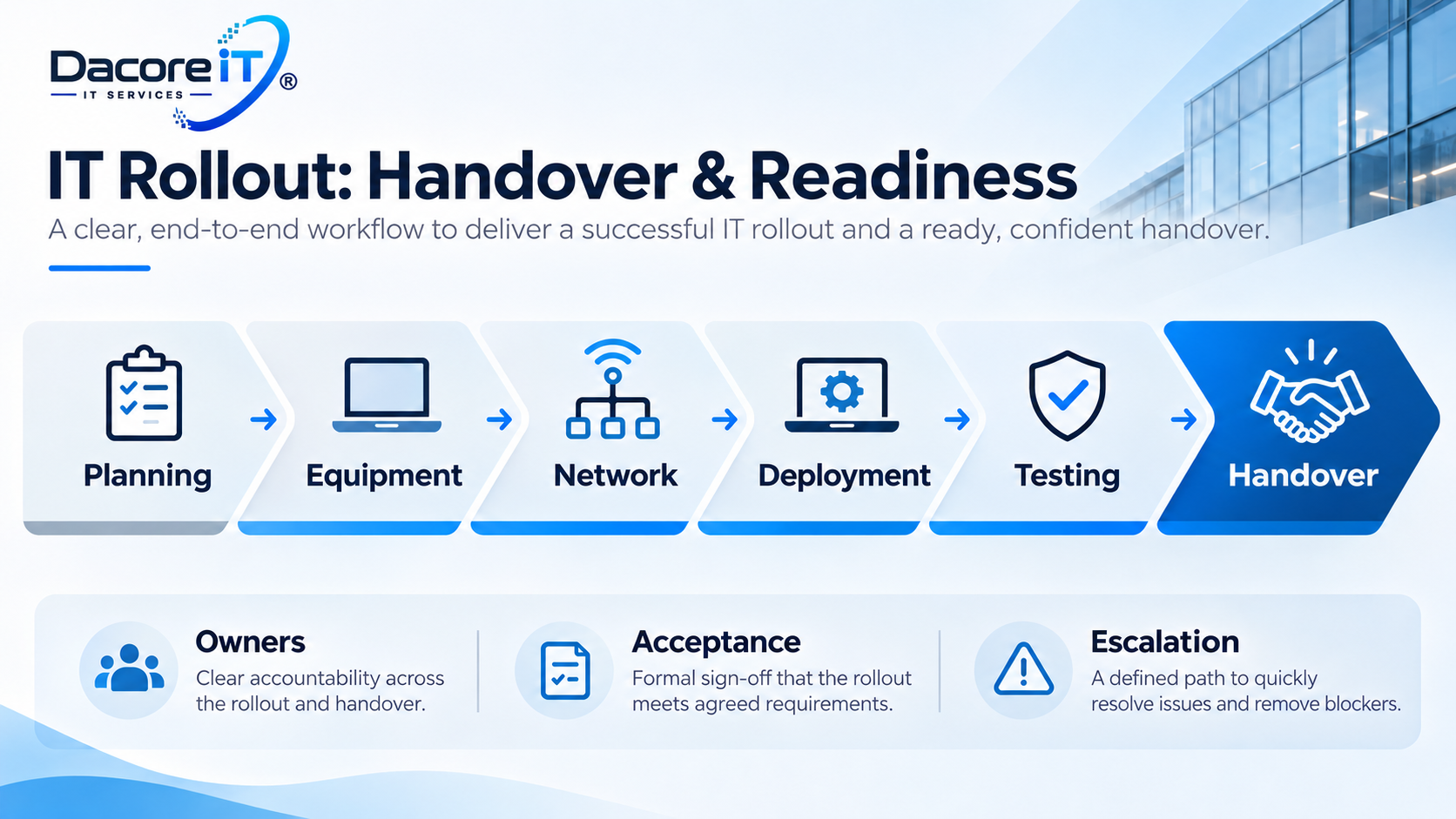
Where remote expertise meets local execution
Many MSPs and systems integrators manage the technical design and service decisions remotely, while physical work must happen at the office. That arrangement can work well when both sides know their boundaries. The remote team can define approved configurations, troubleshooting steps, and acceptance standards. On-site personnel can install or check equipment, follow authorized instructions, provide observations, and document the work completed.
The on-site and remote teams should agree on who can approve exceptions before dispatch. For coordination across multiple sites, use a common work order and escalation route for IT field services.
A smoother opening starts before the first login
An office opening should not depend on last-minute troubleshooting. When teams verify the equipment, network, workstations, meeting rooms, security, support arrangements, and final handover ahead of time, they reduce uncertainty for the people who will use the space.
The practical test is simple: can employees begin work with the tools and access they need, and does the support team know what to do if something goes wrong? If those answers are clear, the opening has a much stronger foundation.
Planning an office IT rollout with DacoreIT?
DacoreIT supports defined on-site IT delivery activities for MSPs, systems integrators, and technology service teams. If you are coordinating a new office, a multi-site rollout, or a workplace refresh, share your locations, equipment scope, planned opening date, and required handover approach. Our team can review the on-site support requirements with you.